

Published on: August 16, 2022 Updated 10 times since publishing
- 🥇 Qustodio : Detects and blocks 25,000+ iOS apps, has high-end web filtering that even top VPNs can’t bypass, and has uninstall protection to prevent kids from turning it off. It comes with time limits, custom scheduling, and a YouTube monitoring feature. It also monitors calls, text messages, and iMessages, as well as WhatsApp and LINE on iOS. It offers the best free plan available, affordable paid plans, and a 30-day money-back guarantee.
The best parental control apps for iOS offer a lot more than Apple’s Screen Time. The parental controls I recommend here come with essentials like web filtering and location tracking, and extras like call & iMessage monitoring. Plus, your kid can’t just factory reset their iPhone or iPad to get rid of the restrictions as they can with Screen Time.
My favorite is Qustodio, as it has the best iOS app filtering in the industry, lots of convenient features like YouTube monitoring and social media monitoring, and it’s really good at preventing kids from bypassing restrictions. Plus, it has uninstall protection, and you can try it risk-free with a 30-day money-back guarantee.
Quick Summary of the Best Parental Control Apps for iOS


🥇 1. Qustodio — Best Parental Control App for iOS in 2026


Qustodio is the best iOS parental control app on the market. It offers tons of features for iPhones and iPads, and it’s one of the few parental control apps that block iOS apps. It also allows cross-device monitoring, so you won’t have any trouble setting restrictions if you’re an Android user, too.
- Intuitive iOS app blocking
- Blocks unsupported browsers
- Prevents VPN circumvention
- Uninstall protection for kids
- Calls/SMS monitoring needs desktop
Qustodio sends detailed daily and weekly reports directly to your dashboard and email, along with real-time alerts when concerning activity is detected — such as visits to blocked sites or sudden changes in device usage.
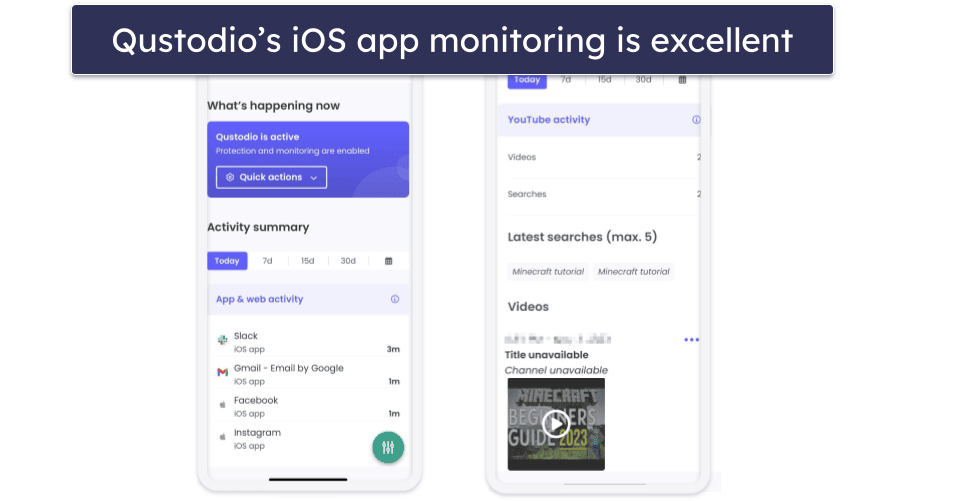
On iOS, Qustodio provides access to the following features:
- App filtering. Qustodio detects and blocks 25,000+ iOS apps, including apps that are popular with teens and kids, like Instagram, YouTube, TikTok, and X (formerly Twitter). In addition, it also lets you set time limits for iOS apps. I especially like that Qustodio only starts displaying iOS apps as your kids start using them.
- Web filtering. You can manually block or whitelist sites, or use Qustodio’s 25+ predefined site categories to save time. Qustodio’s web filtering works only on supported browsers (Safari and Chrome for iOS), but there’s an option to block unsupported browsers so your kid can’t bypass your restrictions. Also, I really like that top VPNs can’t bypass Qustodio’s web filtering — kids will sometimes try to use VPNs to circumvent parental controls.
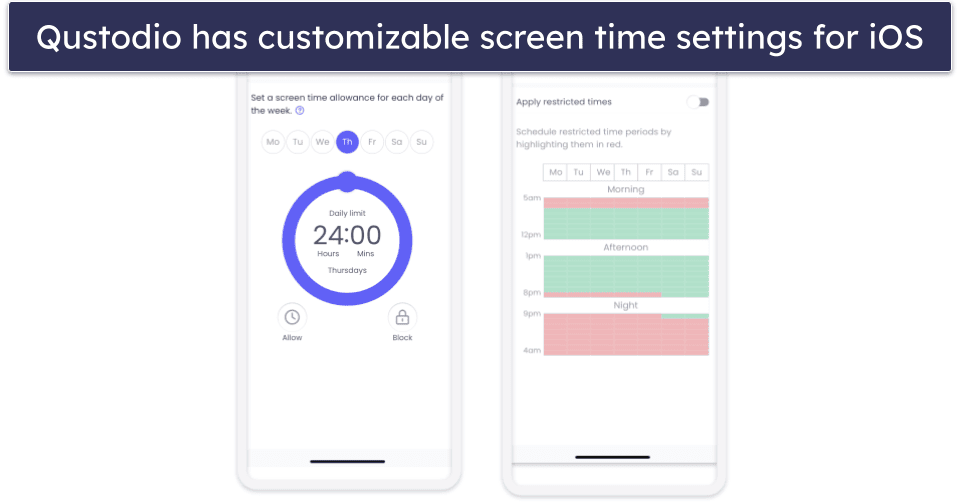
- Time limits. Qustodio allows you to set daily screen time limits on your kid’s iPhones and iPads in increments of 15 minutes. When the time is up, you can either lock navigation, which blocks internet access on your child’s iOS device, or lock the device, which hides any iOS app that is rated age 4+ by the App Store.
- Scheduling. This feature allows you to set screen time limits for specific periods in hour-long chunks. This is helpful if you want to make sure your kids aren’t distracted by their iOS devices during school hours or a family dinner. Qustodio also lets you create custom daily routines for your child’s device use. For example, you can set different screen time rules for school days, weekends, and bedtime to encourage balanced habits.
What’s more, Qustodio’s iOS app also comes with real-time location tracking. The location tracker provides a map view of your child’s recent locations and sends alerts when they enter or exit custom zones (like school or home). You can create up to 10 geofences, each with a radius of up to 650 feet (200 meters) from a location, for precise monitoring.
Additionally, Qustodio offers access to Calls & SMS. This feature enables you to monitor your child’s calls, text messages, and iMessages (although this requires a Mac or Windows computer for use via the helper app). This feature is very invasive, so I only recommend using it if you strongly believe it’s necessary — such as if you’re concerned that your child is being bullied through calls or text messages.
Qustodio uses AI to scan WhatsApp and LINE messages on iOS and sends alerts with related snippets — it doesn’t display entire conversations, but it does include brief context so you can understand the situation, and you can decide whether there’s a need to step in.
Qustodio also takes user privacy seriously — all collected data is encrypted, securely stored, and never shared or sold to third parties. This ensures your family’s online activity and location data remain fully protected.
I also really like that Qustodio’s iOS app for kids comes with uninstall protection — that means your kids need the parental login to uninstall the app. Just make sure they don’t obtain your parental login — for example, they can turn on your device’s screen recorder when you’re not watching.
Qustodio monitors 5 or unlimited iOS devices, starting $4.37 / month. It backs each purchase with a 30-day money-back guarantee. There’s even a decent free plan that provides web filtering, time limits, and scheduling.
Qustodio iOS Setup Guide:
- Setup takes 10–15 minutes and requires installing a configuration profile, granting admin, location, and notification access. (Optional) Use a desktop helper to enable SMS or call monitoring.
- The process is smooth, but it may require additional steps due to Apple’s restrictions.
- Qustodio supports multiple child profiles, each with its own time limits, filters, and routines.
Bottom Line:
Qustodio is the best parental control app for iOS devices in 2026 — it allows cross-device monitoring, blocks 25,000+ iOS apps, and has excellent web filtering for Safari and Google Chrome. It provides time limits and scheduling features, monitors calls and SMS, as well as WhatsApp and LINE, and has accurate real-time location tracking and uninstall protection. Qustodio’s plans have a 30-day money-back guarantee.
Read the full Qustodio review here
🥈 2. Norton Family — Great Web Filtering & Monitoring on iOS

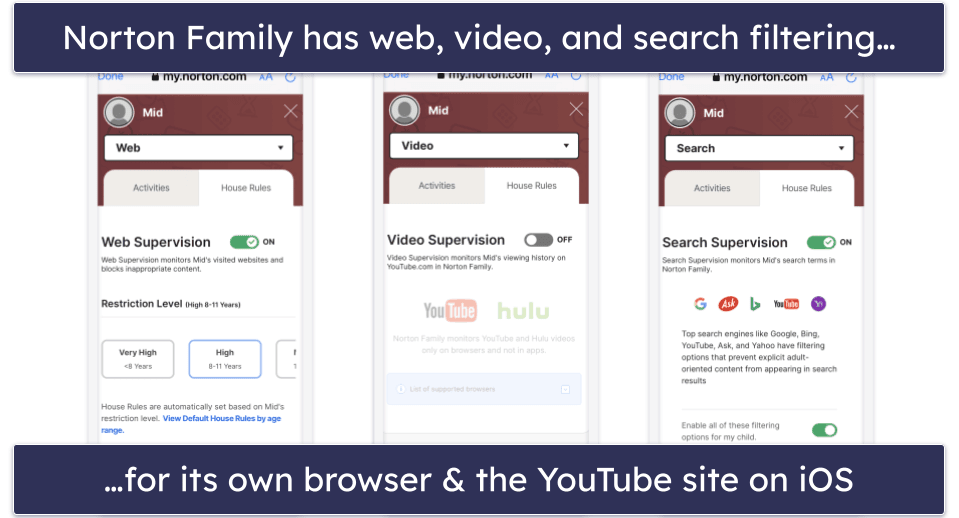
Norton Family has really good web filtering on iPhones and iPads — you can block specific sites or choose from 45+ predefined site categories. Plus, the best VPN out there can’t bypass it. However, unlike Qustodio, Norton doesn’t have the option to block unsupported browsers, so you need to manually block them.
- Convenient School Time feature
- Custom age-based time limits
- Works with Norton 360 suite
- Manual browser blocking only
- No app supervision on iOS
Norton Family lets you see all of your kids’ searches in the Norton Family browser. It also shows you what videos your kid watches on the YouTube site on their iOS device.
If your child tries to access a blocked site or needs more screen time, they can send a request directly through the Norton Family app, giving you the choice to approve or deny it.
I especially like how Norton Family has predefined time limits by age, which saves time in setting up. I’m also a fan of the School Time feature, which automatically limits your child’s access to educational websites and apps during school hours, while blocking distracting content like games and social media.
Norton Family also has an accurate real-time location tracking and geo-fencing feature for iOS that allows you to create geo-fenced zones up to 2 miles or 3.2 kilometers from a certain location. And if you find that kind of location tracking too invasive, Norton Family provides you with an alternative — a check-in option that allows you to ask your kids to share their current location with you over email.
Unfortunately. Norton Family’s App Supervision doesn’t work on iOS, so you must rely on iOS’s built-in restrictions, which kids can easily bypass (by sending YouTube links via iMessage to open the app). For better control, consider Qustodio, which can block apps and monitor iMessage.
You can get Norton Family as an affordable standalone subscription, which is priced at $49.99 / year. Norton Family is also bundled with Norton 360 Deluxe ($49.99 / year*) and Norton 360 Advanced ($44.99 / year*), which provide access to Norton 360, the top antivirus solution in 2026. Norton backs all purchases with a 60-day money-back guarantee.
Norton Family iOS Setup Guide:
- Setup takes 10–15 minutes on iOS. You’ll need to install a configuration profile and grant permissions for VPN, web supervision, and notifications.
- It supports multiple child profiles, each with individual screen time limits, web filters, and activity rules.

Bottom Line:
Norton Family provides great web filtering on iOS and allows you to see your child’s searches in the Norton Family browser. It also features time limits and scheduling, as well as a convenient School Time mode, accurate location tracking, and uninstall protection. Norton Family has a 60-day money-back guarantee.
Read the full Norton Family review here
🥉 3. Bark — Good Web & Social Media App Monitoring on iOS

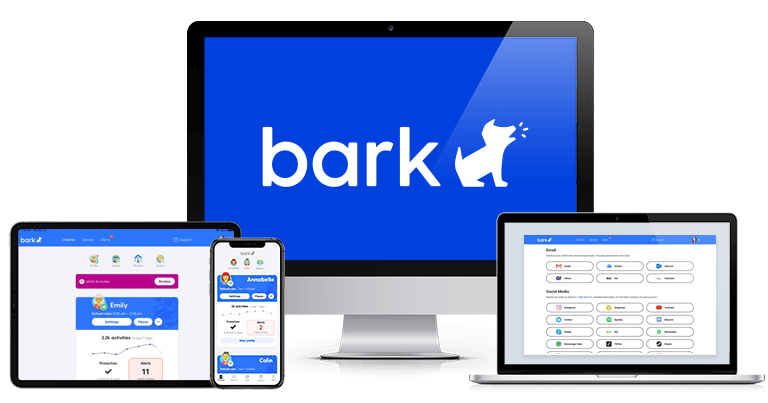
Bark provides pretty good web monitoring and can monitor 15+ iOS apps, including Spotify, Tumblr, Instagram, Kik, YouTube, WhatsApp, and more. On iOS, Bark can also monitor photos, voice memos, text messages, sent and received emails, social media posts, message attachments, comments and replies, links, and much more.
- Great account-level monitoring
- Detects bullying and violence
- Includes driving summary reports
- No time limit controls
- No uninstall protection
Bark’s strength is that it monitors accounts, not just devices, so even if your kid manages to get a smartphone you don’t know about, you’ll still receive notifications about what they’re doing in their social media accounts and apps. For this to work, however, you’ll need to grant Bark access to the child’s social media and email.
But keep in mind, Bark won’t show you everything your child does online — instead, it will scan their online activities and alert you if it detects anything problematic. It uses AI-powered monitoring to scan for threats like violence, predators, and suicidal ideations. Its algorithms also stay up to date with evolving teen slang, emojis, and other triggering or unsafe words, ensuring it detects subtle signs of risky behavior that might otherwise go unnoticed.
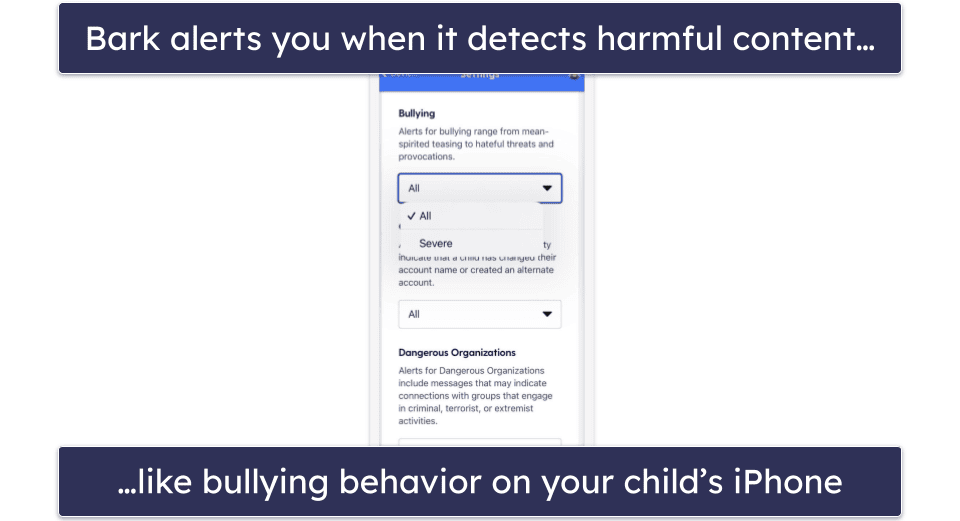
Bark’s web filtering on iOS is pretty good, too. It always blocked inappropriate sites in my tests, even when I tried using a VPN. I also appreciate that you can allowlist specific websites, allowing you to approve educational or trusted sites that your child needs for school or safe browsing. However, you can’t set time limits like with Qustodio and Norton Family — you can only create schedules for iPhones and iPads.
With Bark, you also get real-time location tracking on iOS, a geo-fencing feature, and even a Driving Summary, which should provide details about your kid’s trips and top speeds (it failed in my tests).
I appreciate Bark’s transparency about how it handles collected data. The app securely encrypts all monitored information, stores only what’s necessary for alerts, and doesn’t sell or share your child’s data with third parties.
Bark’s iOS kids app doesn’t come with uninstall protection — you instead have to use Apple’s built-in Screen Time parental control to prevent kids from uninstalling the kids app. I don’t think that’s a good workaround, as it’s pretty easy for kids to bypass Screen Time’s restrictions.
Bark allows you to monitor unlimited iOS devices with Bark Premium ($14.00 / month). Bark doesn’t have a money-back guarantee, but it has a 7-day free trial.
Bark iOS Setup Guide:
- Setup takes around 30–45 minutes and can be tricky as you need to connect to each platform individually.
- Bark requires installing a profile on iOS and granting permissions for notifications and account access to monitor messages and activity.
- It supports multiple children with customizable rules per child.
Bottom Line:
Bark provides good web and social media app monitoring on iOS, as it can monitor text messages, images, chats, emails, and more at the account level, so it’s difficult to bypass. It also has good web filtering, a user-friendly scheduling feature, and accurate location tracking. Bark monitors an unlimited number of iOS devices, but there’s no money-back guarantee.
Read the full Bark review here
4. FamiSafe — Good for Tracking Teen Driving Habits on iOS

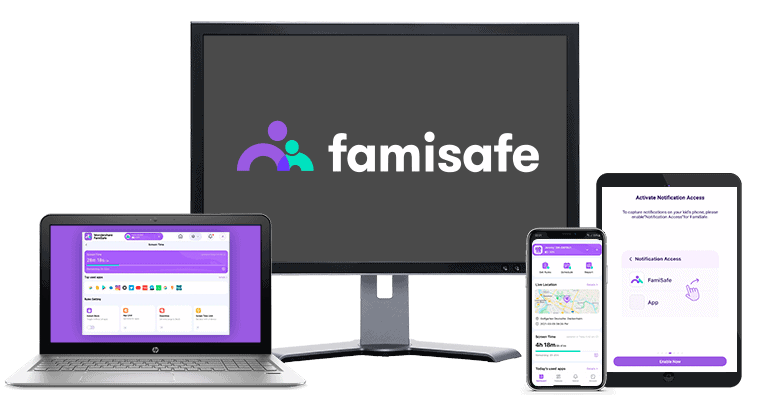
FamiSafe provides you with detailed reports about your kids’ driving habits when they carry their iOS devices with them, via a feature called Drive Safety. It includes information such as the driving time, the highest speed, the average speed, and the total distance driven, and it works really well!
- Detailed teen driving reports
- Reliable SOS panic alerts
- Flexible iOS app filtering
- Limited web filter categories
- No uninstall protection on iOS
FamiSafe also has really good real-time location tracking for iOS devices and a geo-fencing feature. I really like the SOS feature that lets your kids send an alert to your phone even if it’s on silent mode. It can be added as a widget for immediate access, too.
Its web filtering is decent, but it only covers 10+ predefined categories (for comparison, Norton Family has 45+ categories). I also was a bit disappointed how its predefined categories failed to include a few inappropriate websites, like 4chan and Erowid. That said, I like that you can allowlist specific apps or websites. This helps parents prevent overblocking — for example, allowing educational apps or school websites during restricted hours.
Plus, unlike Qustodio and Norton Family, FamiSafe’s iOS kids app lacks uninstall protection. However, you’ll get a notification that the app was uninstalled, so you can address it with your kid.
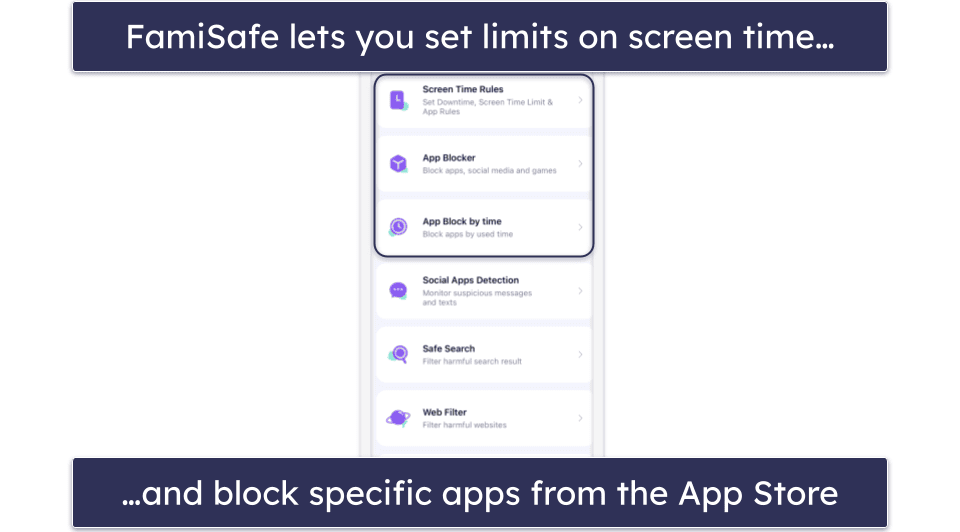
I also like FamiSafe’s app filtering, as it blocks almost any iOS app, and it’s very flexible — you can block an app, set time limits for it, or schedule specific times when your kids can use the app.
You get Call & Messages monitoring — it lets you see call history and iMessage/FaceTime metadata (who your kid communicated with and for how long), but it cannot read full iMessages or intercept FaceTime content on stock iOS. Plus, there’s an SOS Alert showing your kid’s real-time location.
FamiSafe’s paid plans are very affordable (they start at $4.99 / month) and can monitor between 5 and an unlimited number of devices. FamiSafe has a 7-day money-back guarantee for all purchases.
FamiSafe iOS Setup Guide:
- The setup process takes about 10–15 minutes, but it can be confusing if Screen Time or VPN settings don’t activate properly.
- FamiSafe requires installing a configuration profile and granting VPN, Notifications, and Screen Time permissions on iOS (no desktop helper needed).
- FamiSafe allows separate child profiles with individualized rules and schedules.
Bottom Line:
FamiSafe provides detailed information about your kid’s driving habits, comes with really flexible app filtering, decent web filtering, very good location tracking, and even a call & messages monitoring feature on iOS. FamiSafe has a 7-day money-back guarantee.
Read the full FamiSafe review here
5. Mobicip — Detailed Scheduling Feature for iOS

Mobicip gives you granular control on iOS devices in applying web filters. You can set an unlimited number of custom app and web filters in 5-minute increments based on the time of day and the day of the week. These settings override any general content filters you set. What’s more, you can also use Vacation Mode to override the regular schedule.
- Granular scheduling & time limits
- Uninstall protection for iOS
- Vacation Mode overrides schedules
- Fewer categories than Norton
- Social media tools paywalled
Mobicip also allows you to set your child’s total daily iPhone and iPad screen time with the Daily Free Time Limit feature. You can set the Daily Free Time Limit in 15-minute increments for each day. When the daily limit is close to being used up, you and your child will get a notification, and you have the option to extend their iOS device time if you choose. Your child can also request additional screen time or access to blocked apps and websites through the child dashboard. 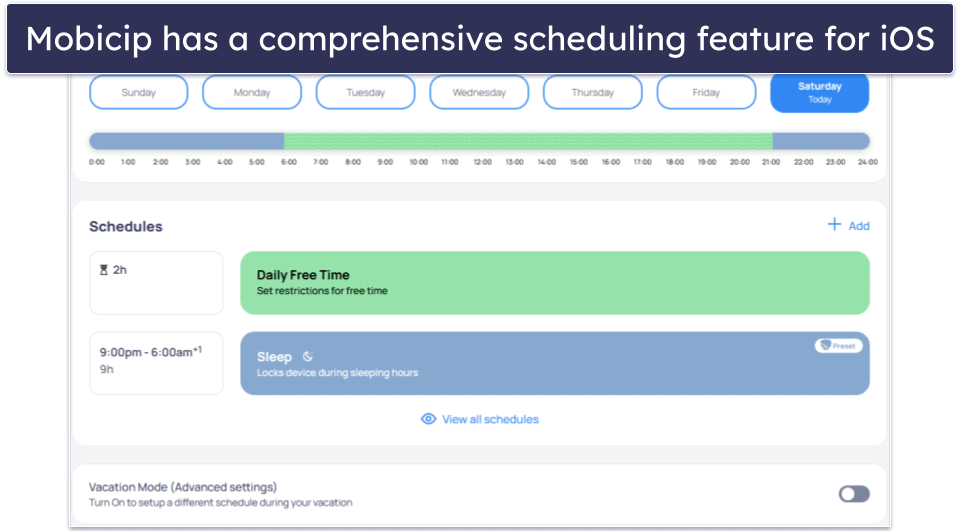
The app blocks 15+ predefined web categories on iOS, which is fewer than Norton Family‘s 45+, but I like how it uses AI to scan websites in real-time for inappropriate content. In my testing, Mobicip consistently blocked websites not meant for kids on my iPhone, even when I used private browsing in Incognito.
Mobicip provides strong location tracking and geo-fencing for iPhones and iPads, and it monitors Facebook on iOS devices. Like FamiSafe, Mobicip also includes an SOS alert feature that lets your child instantly share their live location with you in case of an emergency. I also like that your kid can’t uninstall Mobicip from their device without logging into your Apple account.
It’s impressive that Mobicip supports collaboration and shared parenting. This allows both parents or guardians to monitor their children’s devices, manage rules, and approve screen time requests from separate accounts, ensuring everyone stays informed and involved.
Mobicip offers 3 subscription tiers starting at $2.99 / month. The 2 cheaper tiers share the same features; they differ only in the number of devices you can monitor, ranging from 5 to 10. The top plan adds social media monitoring and time limits on specific categories. You can test Mobicip’s premium features with a 7-day free trial, and there’s a 30-day money-back guarantee.
Mobicip iOS Setup Guide:
- Setup takes around 15–20 minutes and may feel slightly tedious due to multiple permission prompts.
- Mobicip on iOS requires installing a VPN/profile for web filtering and granting Screen Time and Location permissions.
- It supports multiple child profiles with per-child rules and schedules.
Bottom Line:
Mobicip’s strengths lie in its granular scheduling features and its strong web filtering capabilities on iOS devices. It also has accurate location tracking, geo-fencing, and social media monitoring, and a strong uninstall feature. Mobicip offers a 7-day free trial and a 30-day money-back guarantee.
Read the full Mobicip review here
6. Aura — Great for Setting Time Limits on iOS

Aura offers lots of flexibility in setting time limits for specific apps and websites your kid uses on their iPhone and iPad. For example, you can set a 1-hour limit for video game apps, a 2-hour time limit for the YouTube site, and an overall daily screen time limit of 3 hours. Plus, there’s a “Pause Internet” button, which offers immediate control over your child’s internet access — a simple tap halts or resumes connectivity. It also includes the Aura Balance feature, which gives parents insight into their child’s online activity patterns and overall digital well-being.
- Flexible per-app time limits
- Easy Pause Internet button
- Custom child/teen restrictions
- Basic web filtering only
- Limited advanced monitoring features
Aura includes web and app filtering for iOS devices, which is basic but works really well. The app lets you choose from 2 presets tailored for different age groups: Child mode and Teen mode. Child mode implements broad restrictions suitable for younger children, while Teen mode focuses on blocking explicit content, dating sites, and VPNs. However, Aura doesn’t include location tracking or conversation monitoring, so it’s best suited for parents who mainly want to manage screen time and app usage rather than track real-world activity. 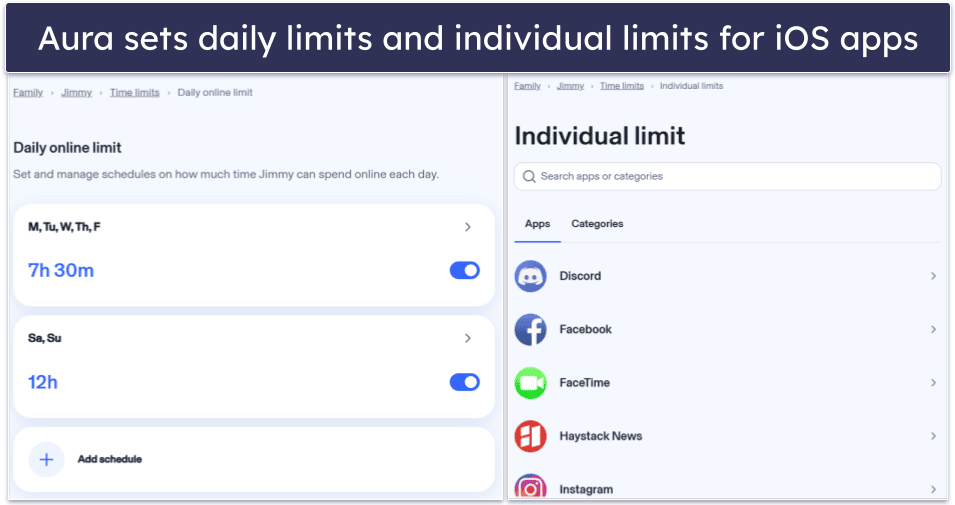
I’d like to see Aura add uninstall protection for iOS, like Qustodio. If your kid deletes the app, you’ll get a notification, but that’s about it. To prevent this from happening, go into the settings on your kid’s iPhone, then go to Screen Time and navigate to iTunes & App Store Purchases, and select Don’t Allow on the Deleting Apps screen.
Aura’s parental controls cost $8.33 / month. You also get a 14-day free trial and a 60-day money-back guarantee. In some regions, Aura’s parental controls are included as part of the Aura antivirus plan, offering both device protection and family safety tools under one subscription.
Aura iOS Setup Guide:
- Setup takes about 10 minutes and requires installing a VPN/profile and granting Screen Time and Notification permissions.
- The process is smooth, though switching between Apple accounts can cause brief delays.
- Supports multiple children with individual rules per profile.
Bottom Line:
Aura is for parents who want flexible time controls for their child’s iOS device. It lets you set separate time limits on specific apps and websites and features effective web filtering with customization options tailored to different age groups. I would just like to see it add uninstall protection. The parental controls are backed by a 60-day money-back guarantee.
7. mSpy — Good for Monitoring Social Media & Calls on iOS

mSpy monitors social media interactions and calls on iOS. It tracks 10+ social media apps, such as WhatsApp, and shows you detailed logs of your child’s contacts on each app, their messages, and shared images. It also includes a built-in keylogger that records everything typed on the device, such as messages, search queries, and notes.
- Shows downloaded files for review
- Includes SOS alert option
- Detects nearby Wi-Fi networks
- Jailbreak needed for most features
- No refund policy
- No app blocking
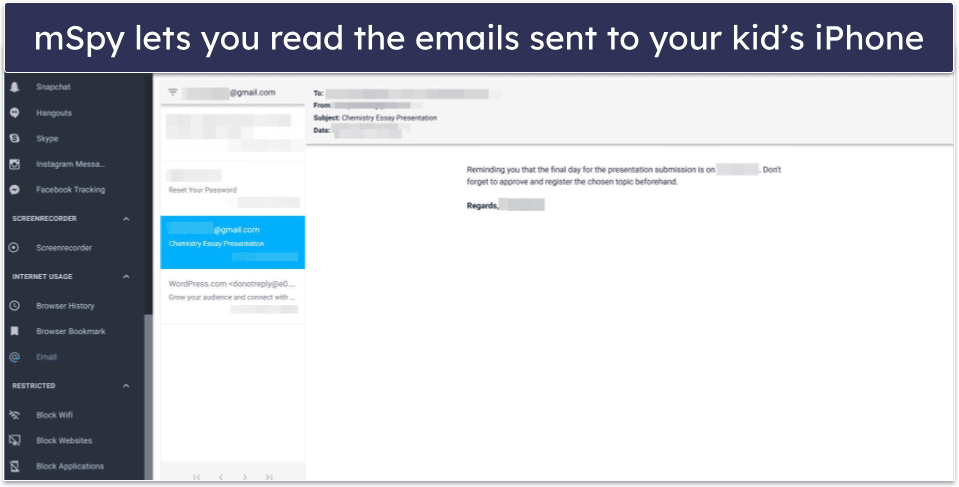
It shows you all of your child’s calls and text messages on their iPhone and iPad devices, as well as their emails, and all photos and videos. mSpy also supports call recording, allowing you to listen to both incoming and outgoing calls for closer supervision. But call recording requires jailbreaking and does not work on stock iOS, so I don’t recommend it. Unlike with Qustodio, there’s no option to block outgoing calls or texts. Plus, mSpy won’t alert you to inappropriate content like Bark — you’ll have to sift through all of the content and find it yourself.
In terms of web monitoring, mSpy keeps track of your kid’s web browsing history, bookmarked sites, and even Wi-Fi networks in your kid’s iPhone’s range. You can block specific URLs, too, but there’s no preset website categories for convenience. It doesn’t let you block any iOS apps either.
mSpy allows you to track your child’s iPhone’s location in real time via a separate app (named mSpy: Find My Friend’s Phone”) and gives your child the option to send an emergency signal from their iPhone via the SOS feature. Just know that tech-savvy kids can download free or cheap location-spoofing apps that show their device in a location of their choosing. If you suspect the locations mSpy is showing you are not accurate, go into the Files app on your kid’s iPhone and check the Downloads folder for suspicious downloads.
Unfortunately, you have to jailbreak your kid’s iPhone to use most of these features, which isn’t easy and can brick the device. Alternatively, you can monitor an iPhone without jailbreaking it by syncing it to your iCloud account or to a Wi-Fi router you and your kid both use.
mSpy’s Ultimate Plan for iOS costs $40.83 / month, and there’s no money-back guarantee.
mSpy iOS Setup Guide:
- Setup takes about 20 minutes and can be tricky due to iOS security restrictions.
- mSpy requires access to your child’s iCloud credentials or a jailbreak for full monitoring.
- It doesn’t support multiple child profiles or per-child rules — each device needs its own setup.
Bottom Line:
mSpy is suitable for parents who want to monitor their child’s social media interactions and calls on iOS. It offers detailed logs across various platforms, including texts and web browsing, but lacks app blocking and content filtering features. Also, it’s missing a refund option.
8. Eyezy — Great App for Reading Your Kid’s Conversations

Eyezy’s keylogger for iPhone captures every keystroke your child makes, giving you insight into everything they type across all apps on their iOS devices. The screen recorder feature adds to this by taking snapshots of their activity on popular messaging apps such as Facebook and Snapchat, ensuring you can visually follow conversations, too.
- Captures every iPhone keystroke
- Visual social media tracking
- Remote installation via iCloud
- Requires iOS jailbreaking
- Limited offline tracking capability
- Doesn’t block websites on iOS
The Social Spotlight feature in Eyezy for iOS monitors your child’s social messengers and email, like Instagram and Snapchat, and text messages. In my tests, it worked on some apps only, and I don’t like that the system takes up to 15 minutes to display new messages. Unfortunately, as with mSpy, this requires jailbreaking the phone. It also gives you access to their social calendar, allowing you to view scheduled events or meetups shared through connected apps. However, you can’t monitor calls like with Qustodio.
Eyezy also offers location tracking and geofencing for iOS. You can set zones of up to 6.2 miles (10 km) in radius and receive alerts when your kid enters or leaves them. However, unlike with FamiSafe, these features require an internet connection.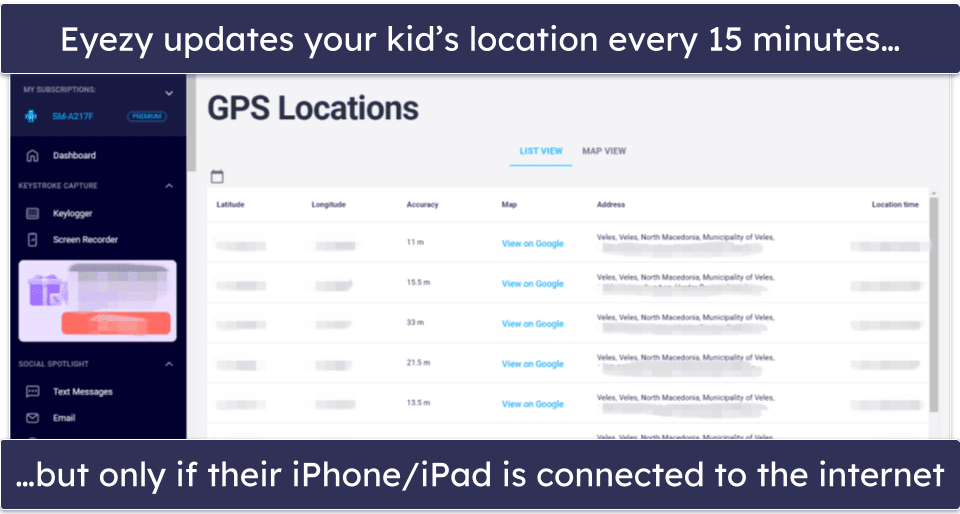
On the web monitoring front, Eyezy lets you see what websites your child visits, but it doesn’t block sites on iOS. It does provide complete access to your child’s browsing history, and there’s a separate feature that lists all contacts in your kid’s iPhone. The Files Finder feature also lets you view photos, videos, and documents stored on your child’s iPhone, so you can keep track of any shared or downloaded files. I also like that you can install Eyezy remotely using iCloud, and that it’s nearly impossible to detect once it’s installed.
Eyezy’s biggest downside is that it asks you to jailbreak your kid’s iOS device to be able to use most of its features, just like with mSpy. You can also connect your phone to your kid’s iPhone via a USB cable, Wi-Fi, or their iCloud credentials, but you’ll only be able to use some features.
Eyezy has a Premium plan that starts at $7.99 / month and a Family Kit that lets you monitor up to 3 devices, but you’d have to reach out to customer support to get an offer.
Eyezy iOS Setup Guide:
- Setting up Eyezy on iOS takes about 10 minutes.
- You can install it remotely using your child’s iCloud credentials without a VPN profile, screen recording, or notifications access. However, full monitoring features like keylogging require jailbreaking the device, which can be risky for non-technical users.
- Eyezy doesn’t support multiple child profiles.
Bottom Line:
Eyezy lets you read everything your kid types on their iPhones and iPads across all apps. There’s a screen recorder for visual tracking of social media interactions, and effective location tracking and geofencing. Eyezy doesn’t offer a free trial or a money-back guarantee.
Quick Comparison Table
| Parental Control | |
|
|
|
|
 |
|
|
|---|---|---|---|---|---|---|---|---|
| Starting Price | $4.37 / month | $49.99 / year | $5.00 / month | $4.99 / month | $2.99 / month | $35.88 / year | $11.67 / month | $7.99 / month |
| Web Filtering | ||||||||
| Time Limits | ||||||||
| App Filtering | ||||||||
| Number of Devices | 5 or Unlimited | 5, 10, or Unlimited | Unlimited | 5, 10, or Unlimited | 5–20 | Up to 50 | 1–3 | 1–3 |
| Free Plan | ||||||||
| Money-back Guarantee | 30 days | 60 days | 7 days | 30 days | 60 days | |||
| Full Review | Qustodio review | Norton Family review | Bark review | FamiSafe review | Mobicip review | Aura review | mSpy review | Eyezy review |
| Visit Website | Visit Website | Visit Website | Visit Website | Visit Website | Visit Website | Visit Website | Visit Website |
Testing Methodology: Comparison & Ranking Criteria
I followed our tried and tested methodology to find and rank the best parental control apps for iOS in 2026. I looked for parental control apps with the ability to monitor and block iOS apps — not all parental control apps can do this. I then ran real-life tests that included web and app filtering, location tracking and geofencing, uninstall protection for iOS devices, and screen time management and scheduling features. I found that all of the apps on this list worked particularly well with iOS devices. Here are the testing criteria I used to decide which parental control apps to include:
- I tested parental control apps’ ability to monitor and block apps on iOS. In my tests, I found the majority of apps on this list could monitor or block at least some iOS apps effectively. I really like Qustodio for this, however, because it can block 25,000+ apps on iOS devices.
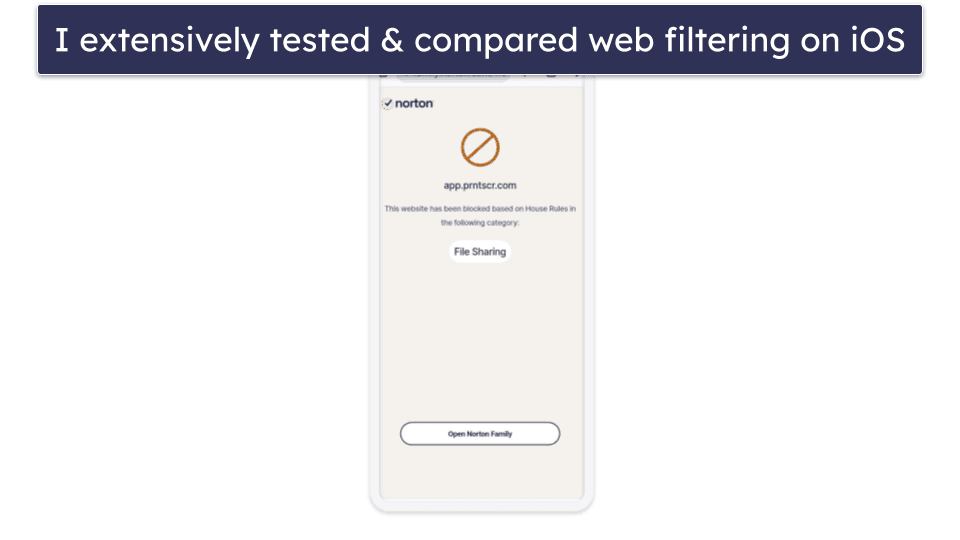
- I looked for strong web filtering capabilities and tested them. I discovered all the apps on this list were quite effective in filtering out concerning content, but I was especially impressed with Norton Family’s comprehensive web filtering list of 45+ categories.
- I checked for location tracking and geofencing features on iOS. I can safely say that all the apps on this list have very accurate, real-time location tracking. I was also happy to find geofencing features that could let you create large zones for monitoring the comings and goings of your kids from school and home, for instance.
- I looked for features that prevent the circumvention of restrictions. Kids can easily bypass iOS Screen Time controls, so using a parental control app with uninstall protection is crucial. Our top picks on this list have uninstall protection for iOS, and those that don’t will send you an alert if the app is ever uninstalled.

- I searched out and tested screen time management features. In all my tests, I learned that every app on this list lets you schedule times when your kids can or cannot use their device, and even specific apps with some of the parental controls.
Top Brands That Didn’t Make the Cut
- Apple’s Screen Time. This parental control app is built into iOS devices, so it’s free to use. It comes with web filtering, app filtering, and time limits, and it also lets you monitor device usage, restrict downloads, and require purchase approval. Unfortunately, it’s really simple for children to bypass this parental app — for example, they can circumvent app filtering by using iMessages or changing their device’s time zone.
- Kaspersky Safe Kids. This is a strong parental control app for Android devices, but it lacks too many features on iOS to recommend for monitoring iOS devices. Kaspersky Safe Kids doesn’t have web filtering that works with iOS, its app filtering is very limited, parents can’t lock iOS devices when time limits are up, and its reports don’t give parents iOS app usage statistics.
- WTracker Online Status. This is an iOS parental control app that provides you with real-time online and offline alerts if your kids access something inappropriate on the web. However, the app won’t block adult content, and it also can’t block apps, monitor your kids’ location, or set daily time limits.
Frequently Asked Questions
What’s the best parental control app for iOS?
Qustodio is the best parental control app for monitoring iOS devices in 2026 — it detects and blocks 25,000+ iOS apps, has excellent web filtering (not even top VPNs can bypass it) and uninstall protection, provides accurate location tracking, in-depth activity reports, and easy-to-use scheduling and time limits. It even has YouTube monitoring and a feature that monitors calls and text messages, and it scans WhatsApp and LINE for risky chats (requires the desktop helper) and alerts you about them, with added context.
How do I prevent my kids from getting around parental controls on iOS?
It’s generally very easy for tech-savvy kids to circumvent many parental control restrictions, including iOS Screen Time restrictions, if they’re not defeating the entire parental control app. The easiest way is for them to simply uninstall the app. Top parental controls, like Qustodio, come with uninstall protection that prevents this. Even if it doesn’t have uninstall protection, a good parental control app will send you a notice that it was uninstalled from your child’s device so that you can discuss it with them.
To get around uninstall protections, kids with a little money can simply buy an older, used iPhone without you knowing it. If this is a concern, I recommend getting Bark, which not only monitors devices but also monitors accounts. That way, you can receive notifications of any concerning content or interactions your kid has on social media or in chats, regardless of the device they use.
Can I use a free parental control app for iOS?
I don’t really recommend using free parental control apps because they’re risky to use (since you provide them with tons of permissions to access personal data) or they lack essential parental control features. Even so, if you insist on using a free parental app, I’d go with Qustodio’s free plan, as it’s the best free parental control app on the market — it comes with web filtering, time limits, scheduling, and daily and weekly activity reports, but it only lets you monitor 1 iOS device.
All in all, I recommend using a free parental control app only to test the service and see if it meets your needs. You ultimately get much better value by opting for a premium parental control app, such as one of Qustodio’s paid plans.
Can’t I just use Apple’s built-in parental controls?
Apple has a free built-in parental control app called Screen Time, but I don’t recommend using it — it comes with web and app filtering and time limits. It even lets you restrict downloads or require purchase approval, but it’s very easy for kids to bypass Screen Time’s restrictions. For example, they can change the device’s time zone or use iMessages to access restricted apps.
Honestly, you get better value by getting a premium third-party parental control app like Qustodio instead — it detects and blocks 25,000+ iOS apps, it has solid uninstall protection, top VPNs can’t bypass its web filtering, it comes with excellent time limits, scheduling, and location tracking, and it can even monitor your child’s YouTube usage and their calls and text messages.
Can I monitor my child’s calls and text messages on iOS?
Yes, you can if you use Qustodio. It features a parental control option that allows parents to monitor their children’s phone calls and text messages. To use this feature, you need to perform a manual setup, but Qustodio provides a helpful tutorial, so the entire setup process shouldn’t take more than 5–6 minutes.
Just keep in mind that this feature is very invasive, so I only recommend using it if you’re worried that your child is being bullied through phone calls or text messages. Otherwise, using such a feature could damage your relationship with your child instead of improving it.